FOR COACHES, ADULT PLAYERS AND PARENTS
How to share training plans and track player progress
Give practice a clear purpose, publish a class plan from Coach, help the right Player profile find it, and keep task completion separate from coaching assessment.
Connect the correct class and Player profile, write a small class plan, save it in Coach, then use its separate Publish Plan action. In Player, open Skills → Coach Plan to find the work. Record practice in the task and save Coach ratings separately after reviewing what the player can do.
Decide what progress will mean
Choose one skill focus and a few tasks that give the player a useful opportunity to practise it. Describe the task, the cue to remember and what the player should notice. A long list of drills is hard to follow if the reason for each drill is unclear.
Keep three ideas distinct: attempting the practice, completing a task, and demonstrating a skill. Completing a task records an outcome for that activity; a coach still needs to judge the observed performance. The Australian Sports Commission's Essential Skills resources include session planning and reflection, which are useful starting points for that routine.
Connect the correct class and profile first
In Coach Personal, prepare the class under its term and add the player using their Player or Parent Email. Check that the invitation was created and sent successfully. Saving a roster entry, or seeing a generated Coach Player ID, does not mean a Player profile has connected.
The invited adult signs in to Player with that email and completes the relevant sport profile. Open Classes → Inbox → Class Invitations, choose the invitation and the matching profile under Accept for Player, then accept. Follow any required guardian approval. Use a current invitation and check the intended athlete and sport before joining.
Create a focused class plan in Coach
In Coach Personal, open Plans, use + for New Plan, then choose New Class Plan for the intended class. Give it a clear Title and Focus. Add the tasks and instructions you want the group to use, select relevant target skills, and add Details or a Due Date where useful.
Check each task's Player visibility before saving. Write instructions that a player or the responsible adult can understand away from the lesson: what to try, the main coaching cue, and how to recognise the intended outcome. Keep the workload appropriate to the participant rather than filling every available field.
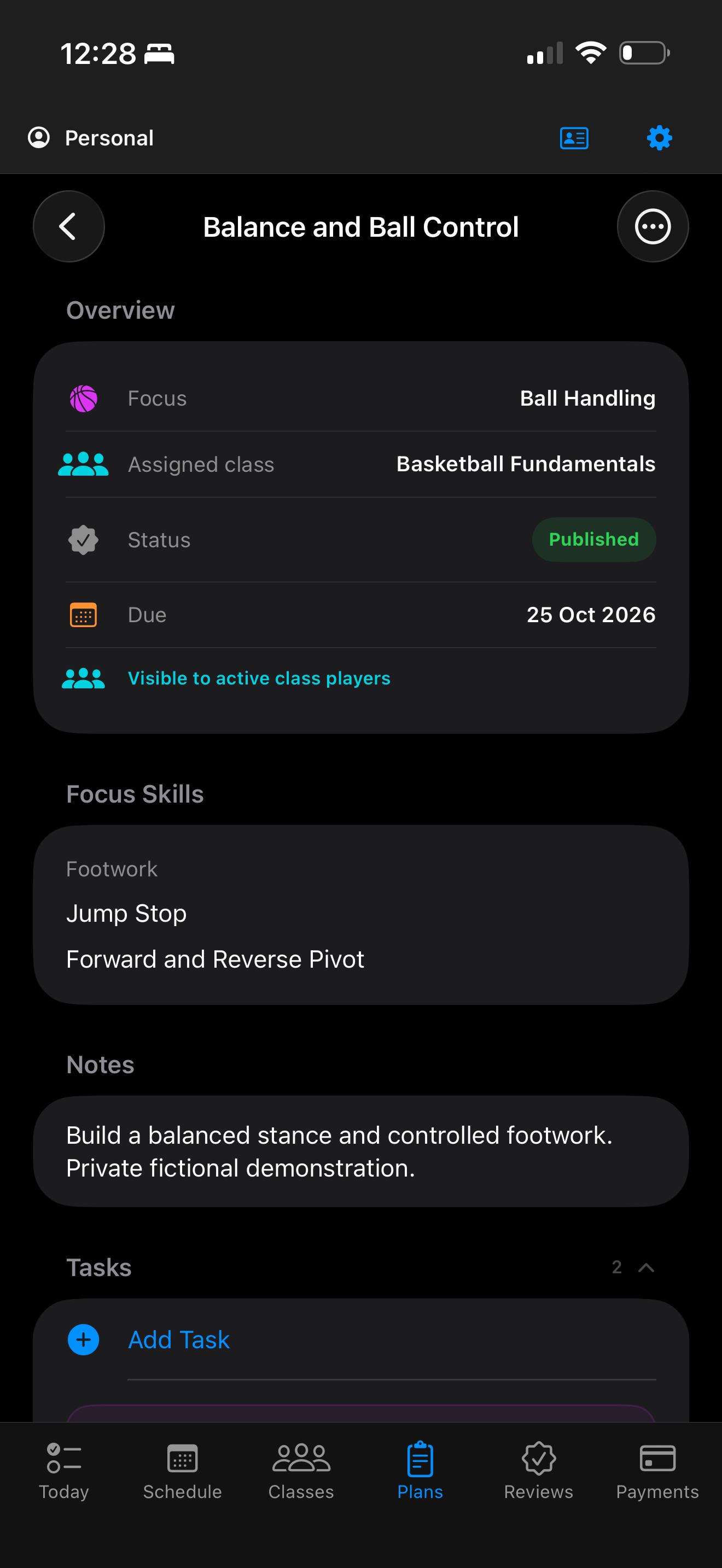
Real app screens · English interface · Sample training data
Save, then publish the class plan
For a Class Plan, Save keeps your changes in Coach. Return to Plans and choose Publish Plan for the first publication, or Publish Changes after editing an already published plan. Publication needs a signed-in Coach and a class with its schedule and term in place. Check the app's result before telling players that the new work is available.
This save-then-publish sequence is specifically for Class Plans. An individual Player Plan uses different sharing controls; do not assume every plan has the same save behaviour. When you revise a class plan, tell players what changed and ask them to check the updated instructions.
Find the published work in Player
With the intended athlete profile selected in Player, open Skills and choose the Coach Plan segment. Class assignments appear under From your class; use Refresh from the Coach Plans header if needed. Open the relevant plan to see Tasks and Target Skills, its completion count, any due date and available coach feedback.
Use Start Task, Continue Task or View Task according to the task's state. Read the instructions before practising. If the plan is missing, check the selected profile, sport, class invitation and Coach publication result first; an unpublished edit in Coach is not a new assignment in Player.
Explore Player's plans and training tools ↗
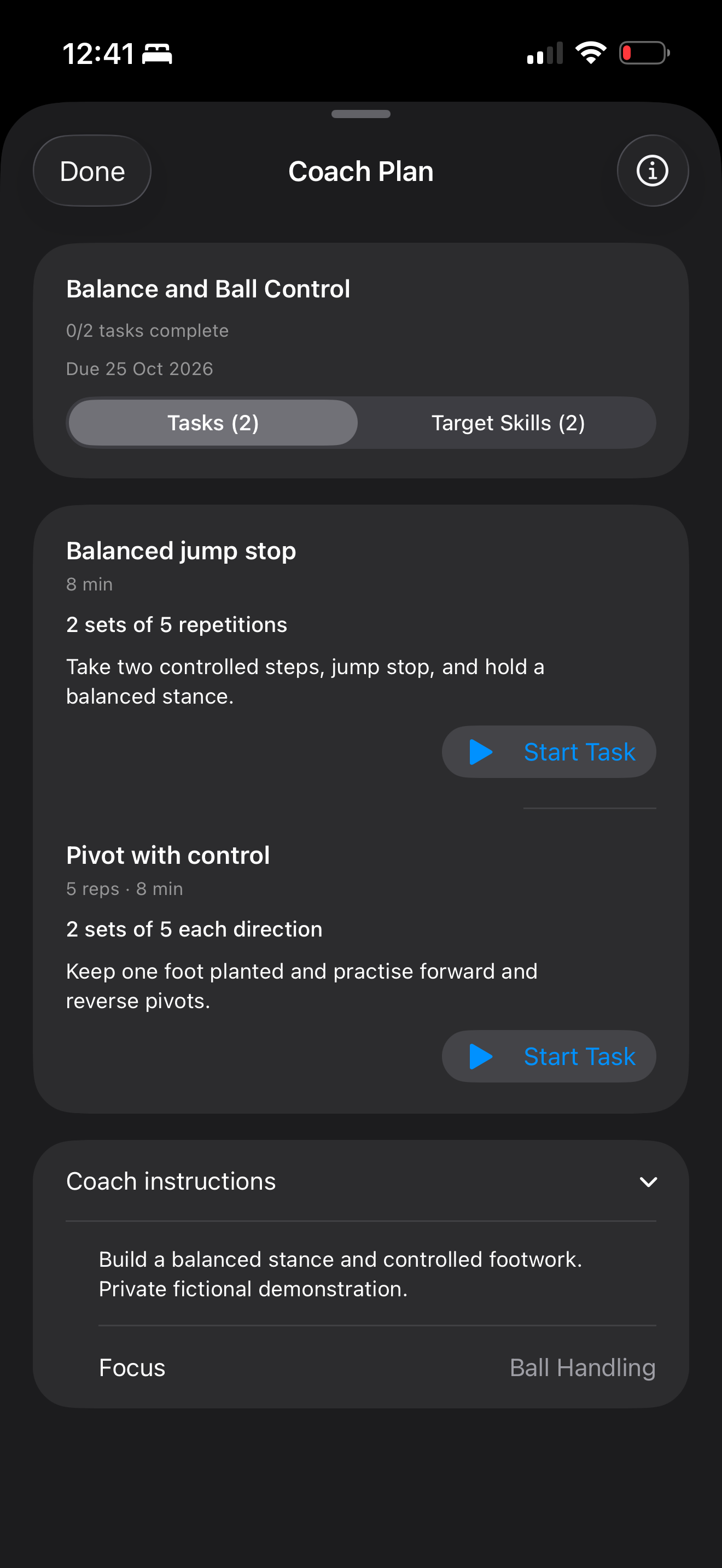
Real app screens · English interface · Sample training data
Record practice without turning it into a score
Inside a task, use Log Progress or Update Progress. Choose a Result such as Completed, Partly completed or Couldn’t complete, add the relevant quantities or optional note, then Save Progress. Only Completed closes the task; partial or unsuccessful attempts can remain available for further practice.
A task check-in does not itself create Coach feedback. Optional task video in this workflow stays privately on the current phone and cannot be viewed by the Coach through the task. Do not assume adding a video sends it to the coach. Use the recorded attempt to support a conversation about what felt clear and what still needs help.
Save the coach's assessment separately
In Coach, open Reviews, choose the relevant Skills or Lessons area, and select the plan or lesson and the item to review. Give each player a rating where appropriate and add specific Feedback. Choose Save ratings, then check whether the app shows a successful save or a device-only or waiting-to-sync state.
Use earlier review history and current observations to decide the next step. Look for a specific change you can describe, rather than treating a completed-task count as a complete picture of ability. The Player plan can show task progress and available Coach feedback, but these are separate records created by different actions.
Repeat a small, clear practice loop
At the next lesson, ask what was attempted, observe the skill again and change one part of the plan. Keep the class, athlete and lesson context clear when recording feedback. For a parent-managed profile, the adult helps the child find the right work and understand the coach's next step.
This routine can use ordinary class plans, task records and coaching observations. It does not require an AI assessment or a public video post. Keep participant information and images within the permissions and communication arrangements you have agreed.
Explore Coach's planning and review tools ↗Prepare your first class ↗Business and operating preparation in Australia ↗
Before you ask a player to start
- The intended sport profile has accepted the correct class invitation.
- The Class Plan has a clear focus, readable tasks and checked Player visibility.
- The plan was saved, published and its publication result checked.
- The family can find it under Skills → Coach Plan in Player.
- Task check-ins, private task videos and saved Coach ratings are understood as different things.
These steps cover Coach Personal Class Plans and the corresponding Player workflow. Individual Player Plans and Organisation permissions differ. Task video is private to the current phone in this workflow. English control names are retained in this guide; interface language and display size can change some labels. Examples are illustrative.